Tutorials - Managing Resources
What are Resources?
Resources are the building blocks of a FrameTrail hypervideo. Any piece of media or content you want to place on the timeline — whether as an overlay on the video or as an accompanying annotation — must first exist as a resource.
Resources are managed centrally in the Resource Manager, accessible from the titlebar in edit mode. Once added, any resource can be reused across multiple hypervideos in your project.
Resource Types
FrameTrail supports a wide range of content types across several categories:
Media Files
Video Platforms
Social Networks
Audio Services
Presentations & Tools
Rich & Interactive Content
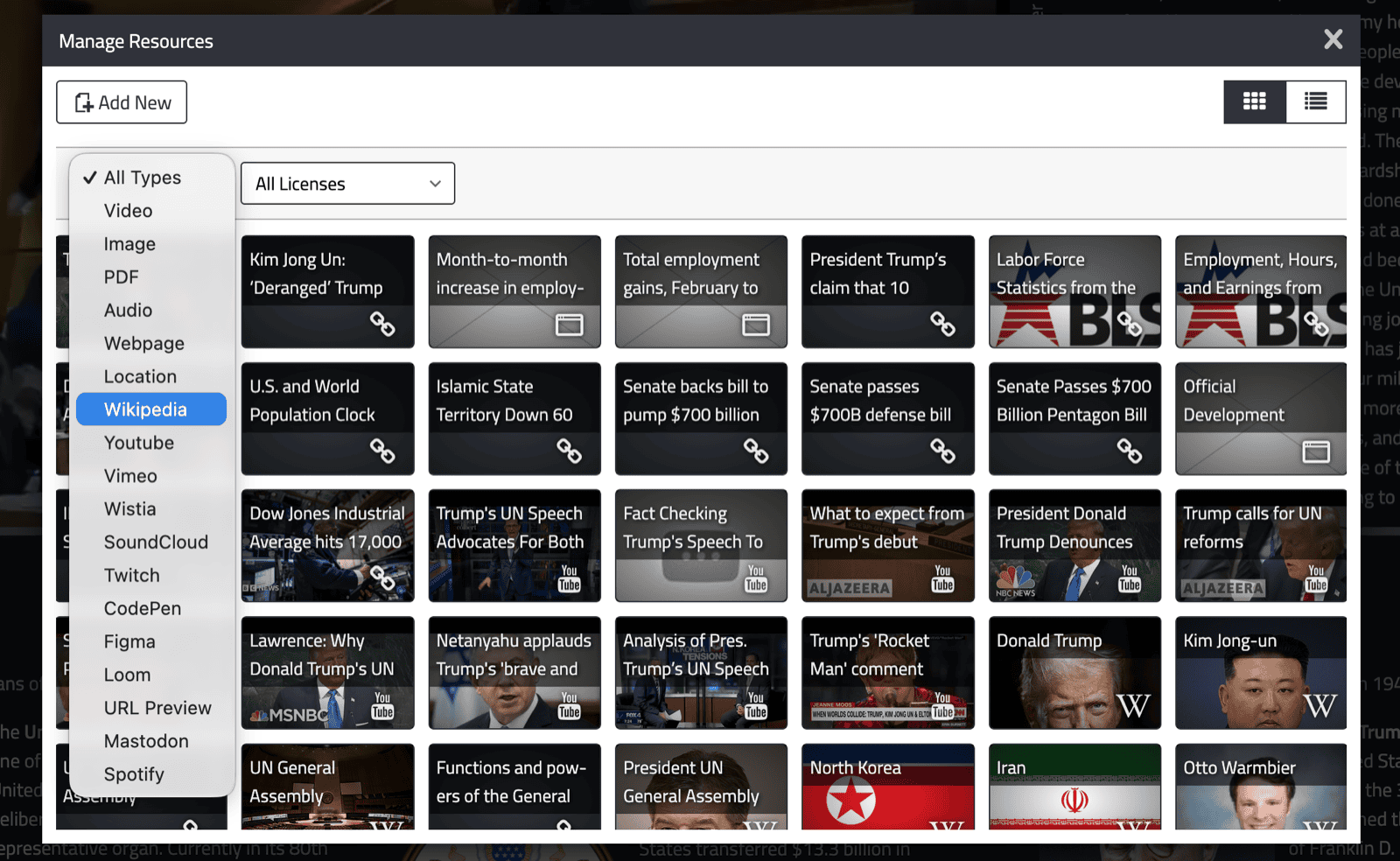
Opening the Resource Manager
- Click the Edit button in the top-right corner and log in.
- In the titlebar, click "Manage Resources". The Resource Manager panel opens.
The Resource Manager lists all resources available in your FrameTrail project. You can filter by type, search by title, or browse by category.
Adding a Resource
Option 1: Upload a file
- Click "Add Resource" in the Resource Manager.
- Select "Upload" and choose a file from your computer (video, image, audio, PDF).
- FrameTrail uploads the file to the server's
_data/directory and registers it as a resource.
Note: File upload requires server mode. In local folder mode, files are copied into the local _data/ folder. In in-memory / guest mode, use URLs only.
Option 2: Add by URL
- Click "Add Resource" and select "Add by URL".
- Paste the URL (YouTube video, Vimeo URL, image URL, etc.).
- FrameTrail detects the type automatically and fetches metadata (title, thumbnail) where available.
- Confirm to add it to your resource library.
Note: If the target site does not allow direct embedding, FrameTrail will automatically save it as a URL preview card with a clickable link instead of an inline embed.
Using Resources in your Hypervideo
Once a resource is in the Resource Manager it appears in the Resource Panel inside the editor and can be dragged onto the timeline as an overlay or annotation. See Editing Hypervideos for the full walkthrough.
Deleting Resources
In the Resource Manager, select a resource and click Delete. A resource cannot be deleted while it is still in use in any hypervideo — remove it from all timelines first.