Tutorials - Managing Data
How FrameTrail Stores Data
FrameTrail stores all project data as portable JSON files — there is no database. Hypervideos, annotations, resources, user accounts, and configuration all live in a structured _data/ directory. This makes it easy to back up, migrate, and share entire projects by simply copying files.
How and where data is persisted depends on which storage mode FrameTrail is running in. Each mode determines whether saves are persistent, whether export is needed, and which additional capabilities (like file upload or multi-user accounts) are available.
Quick Links
Storage Modes
FrameTrail automatically selects the appropriate storage mode based on how it is deployed. See the Installation page for a full comparison table.
Server Mode
When FrameTrail is served with its PHP backend, all reads and writes go through the server. The Save button writes changes directly to the _data/ directory on the server. This mode supports persistent saves, file uploads, user authentication, and media transcoding.
Local Folder Mode
In Chrome or Edge, FrameTrail can use the File System Access API to read and write directly to a folder on your computer. The Save button writes changes to disk immediately. If you pick an empty folder, FrameTrail creates the project structure for you automatically.
In-Memory Mode
When no server or local folder is available (e.g. in Firefox or Safari without a PHP backend), FrameTrail keeps all data in memory only. Edits are not persisted automatically — if you close the browser tab, changes are lost. The Save button is disabled; use Save As to export your work.
Saving your Work
The Save button in the editor sidebar persists all changes to the current hypervideo — including overlays, annotations, code snippets, layout configuration, custom CSS, and subtitles.
In Server and Local Folder mode, Save writes directly to the _data/ directory (on the server or on your disk, respectively). Each user's annotations are stored in a separate file (annotations/{userID}.json), enabling parallel contributions without conflicts.
In In-Memory mode, the Save button is disabled because there is no persistent storage backend. Use Save As to export your work as a downloadable file (see below).
Save As — Exporting Data
The Save As button is available in every storage mode — even when FrameTrail is running on a server. It opens a dialog with three columns representing the three possible destinations:
The Save As button is available in every storage mode — even when FrameTrail is running on a server. It opens a dialog with three columns representing the three possible destinations:
Save to Server
Connects to the PHP backend and saves all data to the server's _data/ directory. Only available when a server backend is reachable.
Save to Local Folder
Uses the File System Access API to write directly to a folder on your computer. Only available in Chrome and Edge.
Download as Files
Downloads data as files to your computer. Always available, regardless of storage mode. This is the primary way to export data when no persistent storage backend is active.
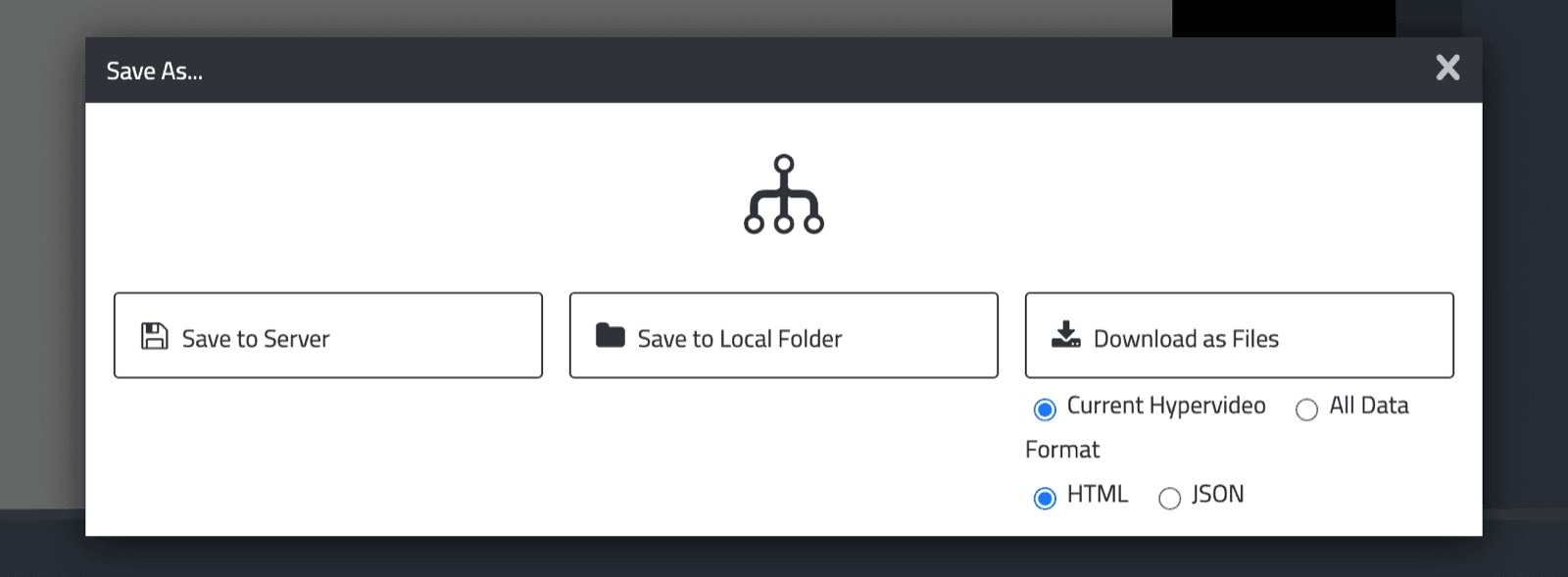
Download Options
The Download as Files column offers a scope toggle and format options:
- Current Hypervideo (default) — exports only the hypervideo you are currently editing. You can choose the format:
- JSON — a single
.jsonfile named after the hypervideo, containing the complete hypervideo data (metadata, clips, contents, subtitles, annotations). - HTML — a self-contained HTML file that plays the hypervideo in any browser without a server. It loads the FrameTrail player from jsDelivr CDN and embeds the data inline. You can optionally set a Resource base URL to resolve uploaded media files (images, videos, etc.).
- JSON — a single
- All Data — exports all hypervideos, resources, and configuration as a
frametrail-export.zipwith the proper_data/directory structure inside. ZIP compression is performed client-side using the fflate library. If a server is available, you can check "Include media files" to download a full server-side ZIP archive including all uploaded media.
The _data/ Directory Structure
Understanding the data directory layout helps with manual backup, migration, and debugging. A typical FrameTrail project looks like this:
_data/
  config.json                    Project-wide settings
  users.json                     User accounts (server mode only)
  resources/
    _index.json                  Resource library metadata
  hypervideos/
    _index.json                  Index of all hypervideos
    {id}/
      hypervideo.json            Hypervideo data (clips, overlays, contents, subtitles, CSS)
      annotations/
        {userID}.json            Per-user annotation files
Each hypervideo's data follows the W3C Web Annotation model: contents use media fragment selectors (t=start,end) for timing and spatial selectors (xywh=percent:x,y,w,h) for positioning.
Backup and Migration
To back up your project, copy the entire _data/ folder — there is no database to dump. To migrate to a new server or switch to local folder mode, simply copy that folder across. See Installation for more on updates and data safety.
To import previously exported data, extract a ZIP export into a FrameTrail installation's _data/ directory, or place individual JSON files into the appropriate locations.
Sharing Hypervideos
There are several ways to share FrameTrail hypervideos with others:
- Direct URL: Copy the URL from the browser — it contains a deep link to the specific hypervideo. Anyone with access to your FrameTrail instance can open it.
- Standalone HTML: Export a self-contained HTML file and send it to anyone. They can open it in any browser — no server needed.
- ZIP Export: Download a ZIP of the project and share it. The recipient extracts it into their own FrameTrail installation to continue editing.
- Copy the _data/ folder: For full project transfers between servers, simply copy the data directory.
- Static / CDN hosting: Upload the
_data/folder to any static file host or CDN and point FrameTrail at it using thedataPathinit option. Viewers can browse and even edit the data in-memory, then export their changes via Save As.