Tutorials - Editing Hypervideos
Entering Edit Mode
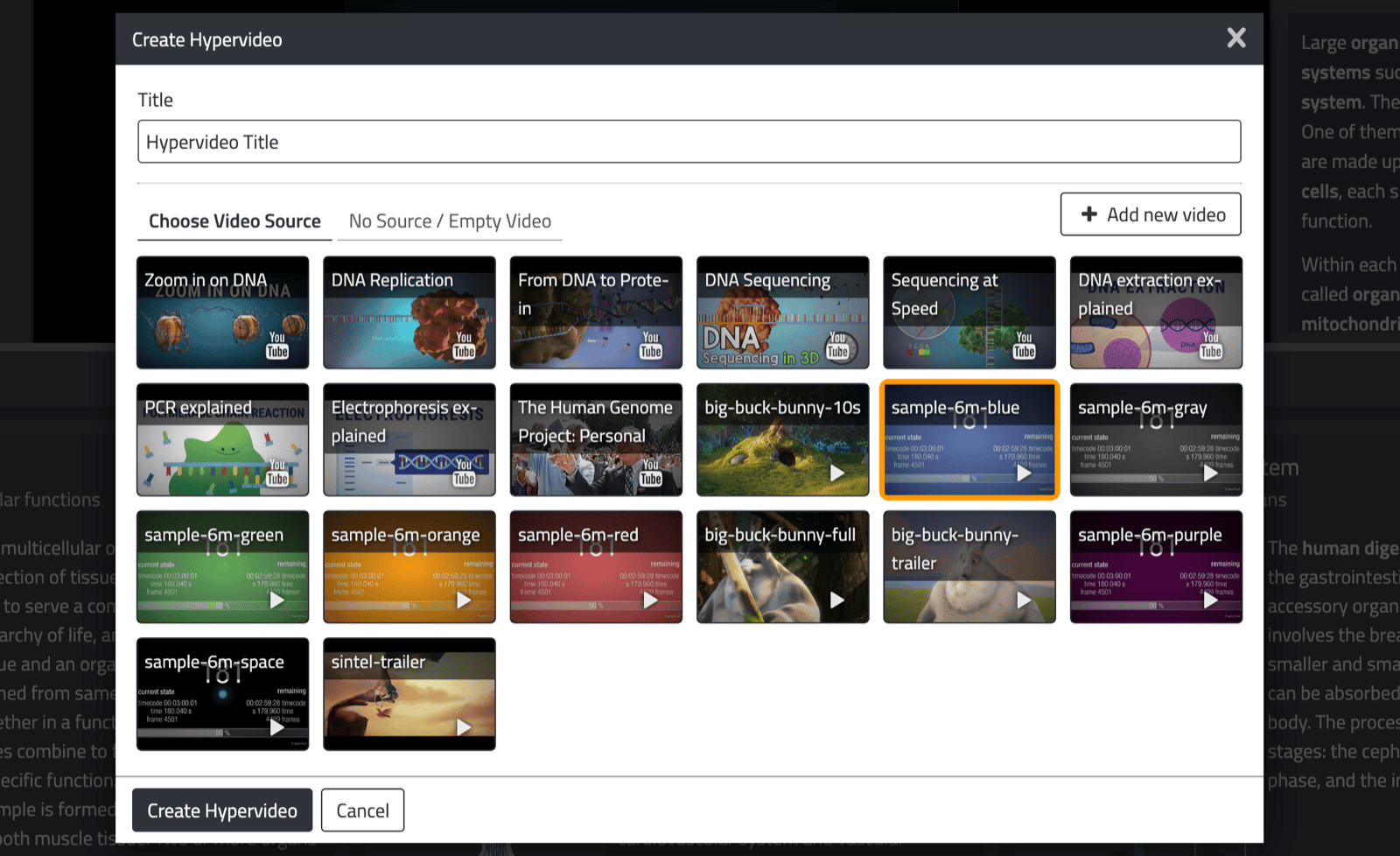
Creating a New Hypervideo
- In edit mode, click "New Hypervideo" in the titlebar.
- Give your hypervideo a title and description.
- Choose a video source. FrameTrail supports:
- HTML5 video — upload a file or link to a direct video URL (MP4, HLS)
- YouTube — paste a YouTube URL
- Vimeo — paste a Vimeo URL
- Time-based container — a virtual video with a set duration but no video source, useful for purely annotation-driven content
- Click Create. FrameTrail will open the new hypervideo in the editor.
Edit Modes
The sidebar exposes three edit modes — Overlays, Annotations, and Code Snippets — each with its own timeline. Switch between them using the tabs at the top of the sidebar. For a conceptual overview of the differences, see Getting Started.
Overlays Edit Mode
Overlays are placed on top of the video and are visible to all users. Only admin users can add or edit overlays.
Adding an Overlay
- Switch to the Overlays edit mode.
- Drag a resource from the Resource Panel onto the overlay timeline, or click "Add Overlay" and select a resource.
- Set the start time and duration by dragging the item's edges on the timeline.
- In the video area, drag the overlay to its position and resize it as needed.
Custom HTML Overlays
In the "Custom HTML" tab, you can create overlays containing any HTML markup — useful for styled text, buttons, or embedded content not covered by built-in resource types.
Hotspot / Link
The Hotspot / Link overlay type defines a clickable area on the video that links to a point of time in another hypervideo. This allows you to build branching narratives.
Annotations Edit Mode
Annotations are user-specific supporting materials displayed outside the video area in the Layout Areas. Every user manages their own set of annotations independently.
- Switch to the Annotations edit mode.
- Drag a resource from the Resource Panel onto the annotations timeline, or click "Add Annotation".
- Set the start time and duration on the timeline.
You can also browse and reuse annotations created by other users: open the "Annotations of other Users" tab for an overview of all annotation sets for the current hypervideo.
Code Snippets Edit Mode
Code Snippets let you define JavaScript code that is executed automatically at a specific point in the video. Switch to the Code Snippets edit mode, then:
- Click "Add Code Snippet" and set the timestamp at which it should fire.
- Write your JavaScript in the built-in code editor.
Code Snippets are shared across all users and can only be added or edited by admin users. See Advanced Use for ready-to-use code snippet examples.
Subtitles
FrameTrail supports subtitle tracks in WebVTT (.vtt) format, synchronized with the video. See the FAQ on subtitle formats for converters from SRT and other formats.
- Open the Edit Hypervideo dialog.
- Under subtitles, upload a
.vttfile and specify the language. - The subtitle track will appear in the player and be rendered as an interactive transcript in the Layout Area if configured.
Saving and Sharing
In Server and Local Folder mode, click Save in the sidebar to persist your changes. In In-Memory mode, the Save button is disabled — use Save As to export your work instead.
You can share a hypervideo by copying its direct URL from the browser, or use Save As to export it as a standalone HTML file, JSON, or ZIP archive.
See Managing Data for a detailed guide on all storage modes, export formats, backup, and sharing options.